
1 Code Blocks
Code Blocks are written in Python and support standard and select third-party libraries. They extend robot behavior beyond what drag-and-drop Routine steps can express — enabling custom motion logic, programmatic IO control, external device communication, and dynamic data computation.
1.1 Introduction to Code Blocks
1.1.1 What Is a Code Block?
A Code Block is a Routine step that lets you write and execute Python code inside an otherwise block-based Routine.
Standard drag-and-drop Routine steps cover the majority of robot programming tasks. Code Blocks exist to fill the gaps — they give you the flexibility to handle conditional logic, data computation, external communication, and other scenarios that cannot be expressed cleanly with blocks alone.
A Code Block is not a separate execution environment. It is simply another step in the Routine sequence. When the Routine reaches a Code Block, the Python code inside it runs, and then the Routine continues to the next step.
1.1.2 When to Use a Code Block
Consider using a Code Block when:
- Logic is too complex or deeply nested to express cleanly with standard blocks — such as conditional branching, loops, or multi-step variable calculations.
- Data needs to be parsed, converted, or computed at runtime.
- External communication is required (Modbus, serial, HTTP, etc.).
- You need programmatic control over digital IO.
Code Blocks are designed to augment block-based programming, not replace it.
1.1.3 When Not to Use a Code Block
Avoid Code Blocks when:
- A standard block already handles the behavior clearly.
- The logic is simple and linear.
- The step needs to remain easy to read and modify by anyone maintaining the Routine.
Overusing Code Blocks can reduce the readability and maintainability of your Routine. If a block can do it, use a block.
1.1.4 How Code Blocks Execute
Code Blocks can run in two modes: as a standard step, or as a Background Step.
Standard execution is synchronous — the Routine does
not advance to the next step until the Code Block has fully completed.
All statements run in order, top to bottom, making execution
predictable. Any operation that pauses execution — such as
time.sleep(), a polling loop, or a network request — also
pauses the Routine for the same duration.
Background Step execution is achieved by placing a Code Block inside a Run In Background step from the standard block-based programming palette. This allows the Code Block to run concurrently while the Routine continues to the next step — useful for tasks that need to run alongside robot motion or other steps without blocking the Routine.
1.1.5 Fault Behavior
If an unhandled error occurs inside a Code Block, the Code Block faults immediately and the Routine stops at that step. No downstream Routine steps execute.
Faults that occur inside a Code Block are not recoverable — the Routine must be restarted from the beginning. This applies regardless of whether the error would otherwise be considered recoverable in a standard block context. You cannot resume execution from the point of failure.
A Code Block failure is treated identically to any other faulted step
in a Routine. You can also trigger a fault intentionally using
routine.trigger_user_fault() — see the Triggering a
Fault section below.
1.2 Creating a Code Block
- Navigate to the Routine Editor.
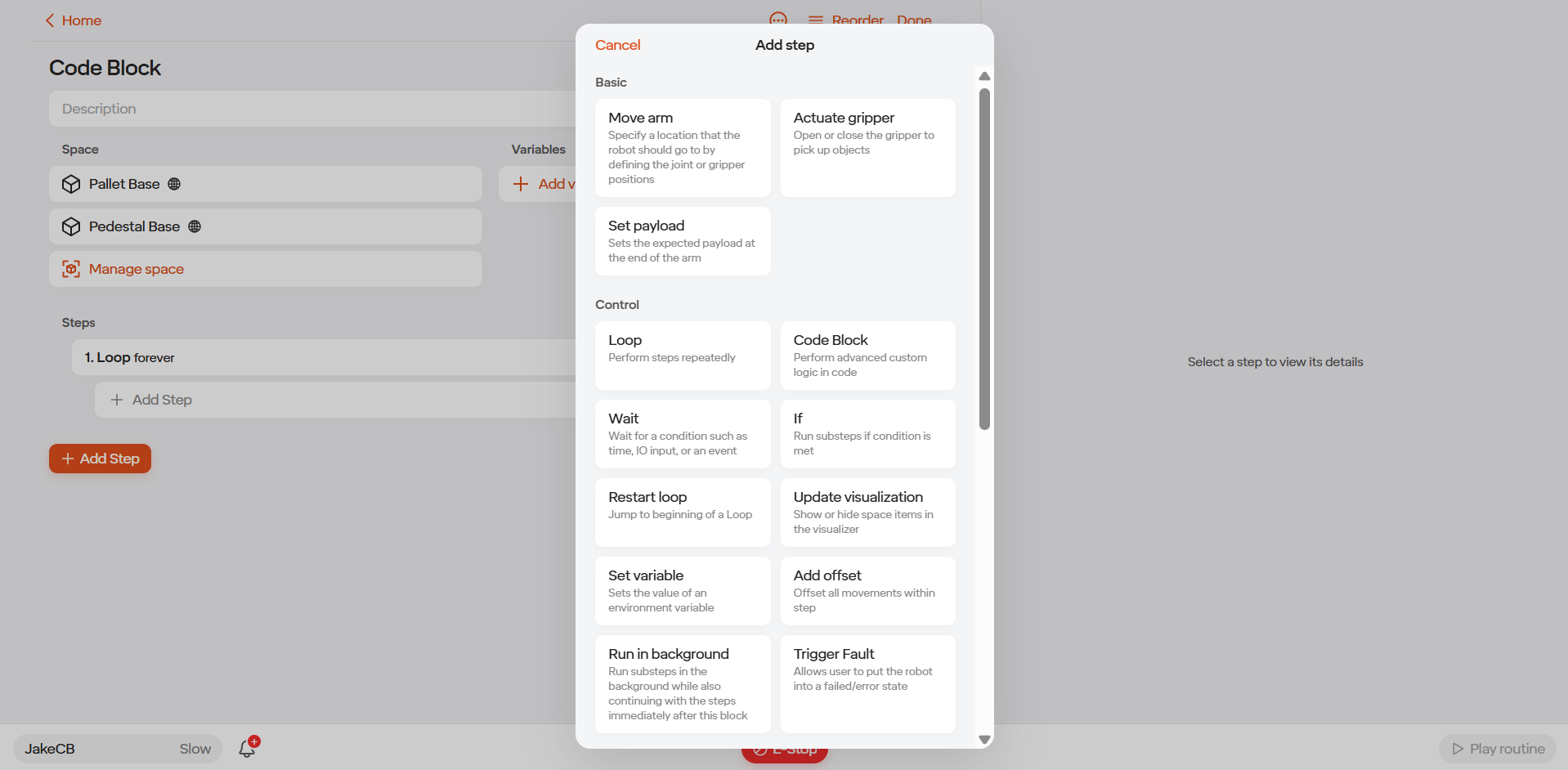
- Click Add Step and select Code Block from the step list.
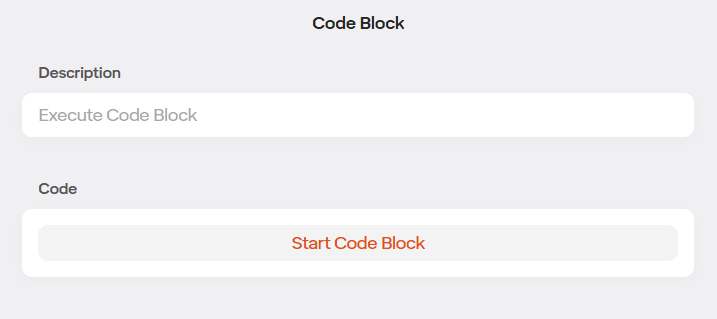
- Click on the Code Block step to select it, then click Start Code Block to open the editor.
- Write your Python code in the editor window.
- Click Save to add the Code Block to the Routine.
Code Blocks can be copied and pasted between Routines. If your code references named variables or saved spaces, make sure those also exist in the destination Routine — otherwise the block may fault at runtime.
1.3 The Code Block Editor
The Code Block editor has three main areas.
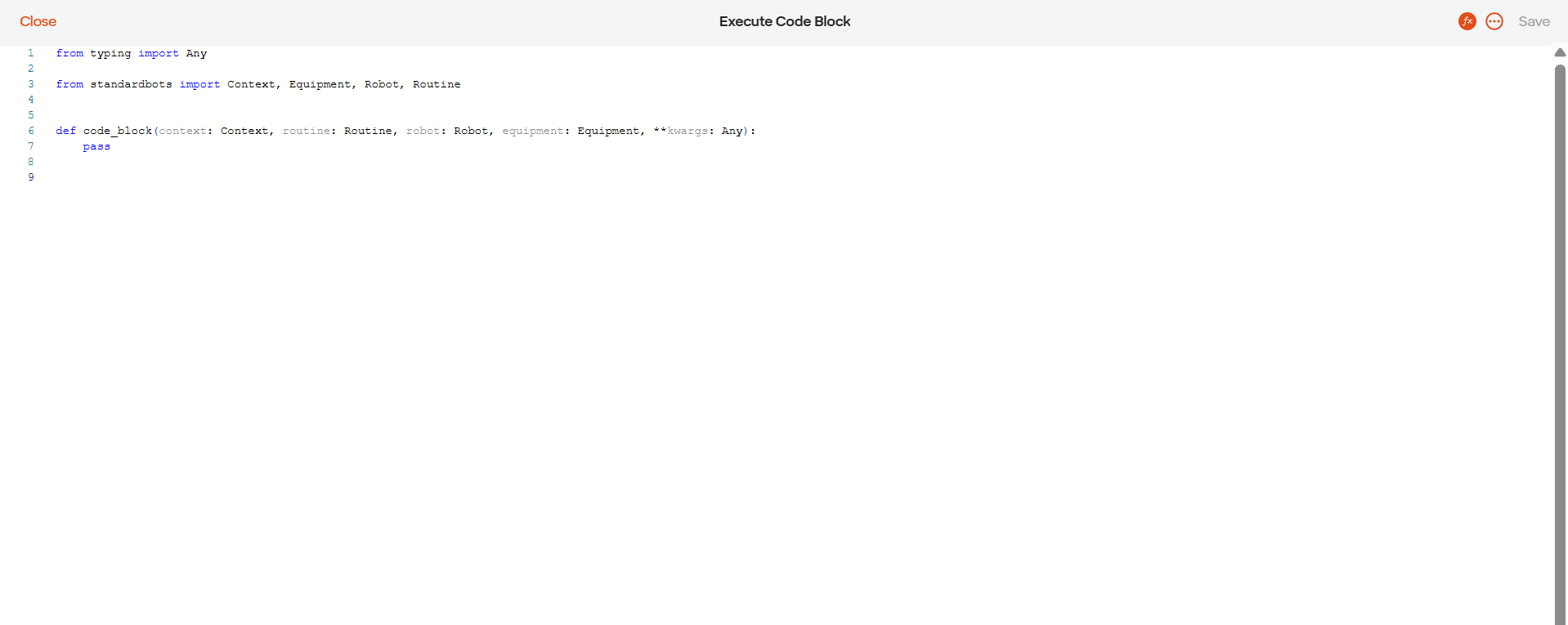
Text Editor
Where you write Python code. The editor supports syntax highlighting and inline validation as you type.
Linter / Debug Panel
Displays syntax errors and runtime warnings before you execute the block. Check this panel to catch issues early.

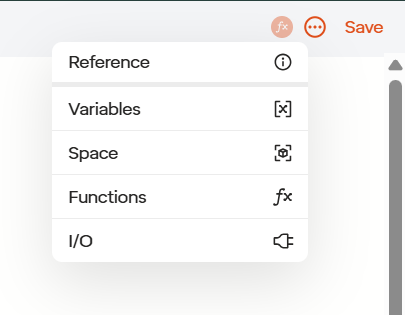
Fx Button
The Fx button is located in the top right of the text editor, next to the Save button. Clicking it opens a library of pre-built functions and expressions you can insert directly into your code. Useful for quickly referencing available runtime objects and their methods.
1.4 Python Environment
1.4.1 Supported Python Features
Code Blocks support the full standard Python syntax, including:
- All standard control structures (
if,for,while,try/except, etc.) - All modules in the Python Standard Library
- Commonly used built-ins (
print,len,range,int,float,str, etc.)
1.4.2 Available Third-Party Libraries
The following third-party packages are available without installation:
| Package | Purpose |
|---|---|
python-dateutil |
Date and time parsing and arithmetic |
urllib3 |
HTTP client library |
pymodbus |
Modbus TCP and RTU communication |
pyserial |
Serial port communication |
orjson |
Fast JSON serialization and deserialization |
1.5 Runtime Objects Overview
Four objects give you access to the robot, routine state, equipment,
and execution context from within a Code Block: routine,
robot, equipment, and
context.
These objects are not automatically imported — they are imported and injected by the default Code Block function, which is pre-populated in every new Code Block. When you open a new Code Block you will see this template already in place:
from typing import Any

from standardbots import Context, Equipment, Robot, Routine  # objects are imported here


def code_block(context: Context, routine: Routine, robot: Robot, equipment: Equipment, **kwargs: Any):
    pass  # your code goes here
The line
from standardbots import Context, Equipment, Robot, Routine
is what makes the four objects available. Do not remove this import or
the function signature — your code goes inside the
code_block function in place of pass.
The **kwargs: Any in the function signature captures any
additional arguments the runtime may pass in future versions. You do not
need to use or reference kwargs in your code — it is
included in the template for forward compatibility and can be safely
ignored.
| Object | Description |
|---|---|
routine |
Access to the active Routine’s variables, state, spaces, and flow control. |
robot |
Interface for robot motion, position queries, IO, and fault recovery. |
equipment |
Access to configured tools and end-effectors such as grippers and sensors. |
context |
Read-only metadata about the current execution environment. |
All four objects are scoped to the active Routine instance. They exist only while the Routine is executing and are not accessible outside a Code Block.
1.6 The routine
Object
The routine object represents the currently executing
Routine. It is your primary interface for reading and writing data
shared across Routine steps.
1.6.1 Reading and Writing Variables
Routine variables are key-value pairs accessible by name. They persist across all steps in the Routine — a variable written in one step is available to all downstream steps, whether those are Code Blocks or standard blocks.
| Usage | Syntax | Notes |
|---|---|---|
| Read a variable | routine.variables["name"] |
Returns the current value. Faults if the variable does not exist. |
| Write a variable | routine.variables["name"] = value |
Creates the variable if it doesn’t exist; overwrites if it does. |
| Shorthand alias | routine.vars["name"] |
Identical to routine.variables["name"]. |
Routine variables are stored as strings. When reading a numeric value, cast it explicitly:
Naming conventions: Variable names are case-sensitive. Spaces are allowed (e.g.
"Cycle Count"). Avoid special characters other than spaces, underscores, and hyphens to ensure compatibility across all Routine steps. Names should be consistent in casing throughout the Routine — mixing"cycleCount"and"Cycle Count"will create two separate variables.
count = int(routine.variables["Cycle Count"])
speed = float(routine.variables["Target Speed"])
Example — read, compute, and write back:
count = int(routine.variables["Cycle Count"])
new_count = count + 1
routine.variables["Cycle Count"] = str(new_count)
print(f"Completed cycle {new_count}")
1.6.2 Routine State
| Function | Syntax | Description |
|---|---|---|
| Get state | routine.get_state() |
Returns the current state of the Routine. |
| Stop routine | routine.stop_routine() |
Immediately stops the executing Routine. |
Example:
state = routine.get_state()
print(state)
1.6.3 Spaces and Planes
| Function | Syntax | Description |
|---|---|---|
| List spaces | routine.list_spaces(exclude_global_spaces=False) |
Returns all saved spaces. Pass True to exclude global
spaces. |
| List planes | routine.list_planes() |
Returns all planes associated with the Routine. |
1.6.3.1
exclude_global_spaces Parameter
Controls whether globally defined spaces are included in the returned list.
| Value | Behavior |
|---|---|
exclude_global_spaces=False |
Returns all spaces, including global spaces shared across Routines. |
exclude_global_spaces=True |
Returns only spaces local to the current Routine, excluding any global spaces. |
Example — list all spaces:
spaces = routine.list_spaces(exclude_global_spaces=False)
routine.vars["Spaces Info"] = str(spaces)
print(str(spaces))
Example — list local spaces only:
local_spaces = routine.list_spaces(exclude_global_spaces=True)
print(str(local_spaces))
1.6.4 Error Handling
Code Blocks support standard Python try/except blocks.
Wrapping code in a try/except lets you catch errors
gracefully and decide how to respond — logging the issue, writing a
fallback value, or triggering a controlled fault — rather than letting
an unhandled exception stop the Routine unexpectedly.
Example — catch a missing variable:
try:
    count = int(routine.variables["Cycle Count"])
except KeyError:
    routine.trigger_user_fault(message="Variable 'Cycle Count' not found", isRecoverable=False)
Example — catch a communication error and continue:
try:
    with robot.io.modbus.open_tcp("192.168.1.100", 502) as client:
        result = client.read_holding_registers(address=0, count=1)
        routine.variables["Sensor Value"] = str(result.registers[0])
except Exception as e:
    print(f"Modbus read failed: {e}")
    routine.variables["Sensor Value"] = "0"  # fallback value
Example — catch any unexpected error and trigger a recoverable fault:
try:
    # your logic here
    pass
except Exception as e:
    routine.trigger_user_fault(message=f"Unexpected error: {e}", isRecoverable=True)
1.6.5 Triggering a Fault
You can halt the Routine intentionally with a descriptive error
message using trigger_user_fault.
| Parameter | Type | Description |
|---|---|---|
message |
str |
The error message displayed when the fault occurs. |
isRecoverable |
bool |
If True, the operator can recover and resume. If
False, a full restart is required. |
1.6.5.1 isRecoverable
Parameter
Controls whether the operator can recover from the fault and continue the Routine, or whether a full restart is required.
| Value | Behavior |
|---|---|
isRecoverable=True |
The Routine halts and displays the fault message. The operator can acknowledge the fault and resume from where it stopped. |
isRecoverable=False |
The Routine halts and displays the fault message. A full restart of the Routine is required to continue. |
Example — recoverable fault:
routine.trigger_user_fault(message='testfault', isRecoverable=True)Example — non-recoverable fault:
routine.trigger_user_fault(message='testfault', isRecoverable=False)1.7 The robot
Object
The robot object provides programmatic access to the
robot — its motion, current position, IO, and fault recovery. It
controls the same robot targeted by the Routine’s block-based steps.
1.7.1 Motion Control
| Function | Description |
|---|---|
robot.move(position, orientation, ...) |
Move the robot to a given position and orientation. The robot plans and executes the motion to reach the target pose. |
robot.move_tooltip(position, orientation, ...) |
Move the tooltip (end-effector tip) to a position. Use this when the target position should be interpreted relative to the tooltip rather than the robot flange. |
Example — move to a Cartesian position:
target = robot.cartesian_pose(x=300, y=0, z=400, rx=0, ry=180, rz=0)
robot.move(target)
1.7.2 Pose Utilities
Use these helpers to construct and manipulate poses.
| Function | Description |
|---|---|
robot.cartesian_pose(x, y, z, rx, ry, rz) |
Create a Cartesian pose from position (mm) and Euler angles (degrees). |
robot.joint_pose(j0, j1, j2, j3, j4, j5) |
Create a joint-space pose from six joint angles (degrees). |
robot.cartesian_offset(x, y, z, rx, ry, rz) |
Create an offset relative to the current Cartesian pose. |
robot.poses_addition(pose1, pose2) |
Combine two Cartesian poses additively. |
robot.poses_subtraction(pose1, pose2) |
Subtract one Cartesian pose from another. |
robot.pose_distance(pose1, pose2) |
Compute the distance between two Cartesian poses. |
Example — apply a Z offset from the current position:
offset = robot.cartesian_offset(x=0, y=0, z=50, rx=0, ry=0, rz=0)
robot.move(offset)
1.7.3 Position Queries
| Function | Description |
|---|---|
robot.get_position() |
Get the current arm position. |
robot.joints_position() |
Get current joint angles for all six joints. |
robot.tooltip_position() |
Get the current tooltip (end-effector tip) position. |
robot.flange_position() |
Get the current flange position. |
Example:
current_pos = robot.get_position()
print(f"Current position: {current_pos}")
1.7.4 Brakes and Fault Recovery
| Function | Description |
|---|---|
robot.brake() |
Engage the robot’s brakes. |
robot.unbrake() |
Disengage the robot’s brakes. |
robot.kind | Returns
"live" or "simulated" depending on execution
mode. |
1.7.5 Digital IO
The robot’s digital IO can be read and written at the object level.
| Function | Description |
|---|---|
robot.get_io_status() |
Returns a snapshot of the current digital IO state. |
robot.change_io_status(io_map) |
Updates IO outputs using a key-value map. |
For per-pin access, see IO Interfaces below.
1.8 The equipment
Object
The equipment object provides access to tools and
end-effectors configured for the Routine, such as grippers and
sensors.
| Function | Description |
|---|---|
equipment.get_gripper_config() |
Returns the current gripper configuration. |
equipment.actuate_gripper(command) |
Send a command to open, close, or position the gripper. |
The most common commands are "open" and
"close". Additional commands (such as specific position or
force targets) depend on the gripper model configured for the Routine —
check your equipment configuration for the full list of supported
commands.
Example — open and close a gripper:
import time

equipment.actuate_gripper("open")
time.sleep(1.0)
equipment.actuate_gripper("close")
1.9 The context
Object
The context object provides read-only metadata about the
current execution environment.
| Property | Description |
|---|---|
context.kind |
Describes the type of the current block — either
"code-block-step" (a full Routine step) or
"expression" (an inline expression context). |
context.robot_kind |
Indicates whether the robot is "live" (connected to a
real robot) or "simulated". Use this to branch behavior
between test and production environments. |
context._sdk |
Internal access to the raw SDK client. This property is intentionally undocumented and unsupported — use it only if directed to by Standard Bots support. |
Example — skip hardware calls in simulation:
if context.robot_kind == "simulated":
    print("Simulation mode — skipping hardware call")
else:
    # Execute live hardware interaction here
    pass
1.10 IO Interfaces
IO is accessed through robot.io, which exposes three
sub-interfaces: digital IO, serial, and Modbus.
1.10.1 Digital IO
(cb_digital)
Digital inputs and outputs are accessed by pin number (1–16).
| Operation | Syntax | Returns |
|---|---|---|
| Read a digital input | robot.io.cb_digital.i["1"] |
"high" or "low" |
| Set a digital output | robot.io.cb_digital.o["2"] = "high" |
— |
Example — wait for a sensor signal:
import time

while robot.io.cb_digital.i["3"] == "low":
    time.sleep(0.1)

print("Sensor triggered")
Example — activate an output:
robot.io.cb_digital.o["5"] = "high"
1.10.2 Serial Communication
Use robot.io.serial.open() as a context manager for raw
serial communication via pyserial.
| Function | Description |
|---|---|
robot.io.serial.open(port, baudrate, **kwargs) |
Opens a serial connection. All standard pyserial kwargs
are supported. |
Example:
with robot.io.serial.open("/dev/ttyUSB0", 9600) as ser:
    ser.write(b"PING\n")
    response = ser.readline()
    print(f"Response: {response}")
1.10.3 Modbus TCP and RTU
Modbus communication is available via robot.io.modbus,
which wraps pymodbus. Both methods are used as context
managers.
| Function | Description |
|---|---|
robot.io.modbus.open_tcp(host, port, **kwargs) |
Connect to a Modbus TCP server. |
robot.io.modbus.open_rtu(port, baudrate, **kwargs) |
Connect to a Modbus RTU (serial) device. |
Example — read a holding register over TCP:
host = str(routine.variables["Device IP"])

with robot.io.modbus.open_tcp(host, 502) as client:
    result = client.read_holding_registers(address=0, count=2)
    value = client.convert_from_registers(result.registers, data_type=client.DATATYPE.INT32)
    routine.variables["Sensor Value"] = str(value)
    print(f"Register value: {value}")
Example — write a register over TCP:
host = str(routine.variables["Device IP"])

with robot.io.modbus.open_tcp(host, 502) as client:
    client.write_register(address=10, value=1)
1.11 Common Patterns and Examples
This section shows practical, copy-ready patterns for the most frequent Code Block use cases. These are starting points — not complete programs. Adapt variable names, pin numbers, addresses, and logic to match your specific Routine and hardware configuration. For full API details on any function used here, refer to the relevant object section above.
1.11.1 Reading and Writing Routine Variables
See also: The
routine Object → Reading and Writing Variables
# Read a string variable
label = str(routine.variables["Part Label"])

# Read numeric variables (always cast from string)
speed = float(routine.variables["Target Speed"])
count = int(routine.variables["Cycle Count"])

# Compute and write back a result
new_count = count + 1
routine.variables["Cycle Count"] = str(new_count)

print(f"Completed cycle {new_count} at speed {speed}")
1.11.2 Moving to a Saved Space
See also: The
routine Object → Spaces and Planes
spaces = routine.list_spaces(exclude_global_spaces=False)

target_space = next((s for s in spaces if s["name"] == "Pick Position"), None)

if target_space is None:
    routine.trigger_user_fault(message="Space 'Pick Position' not found", isRecoverable=False)

robot.move(target_space)
1.11.3 Moving to a Cartesian Position
See also: The
robot Object → Motion Control, Pose Utilities
# Move to an absolute Cartesian position
target = robot.cartesian_pose(x=400, y=-150, z=300, rx=0, ry=180, rz=90)
robot.move(target)

# Move with a Z offset from the current position
offset = robot.cartesian_offset(x=0, y=0, z=50, rx=0, ry=0, rz=0)
robot.move(offset)
1.11.4 Actuating a Gripper
See also: The
equipment Object
import time

equipment.actuate_gripper("open")
time.sleep(0.5)

equipment.actuate_gripper("close")
time.sleep(0.5)
1.11.5 Reading and Writing Digital IO
See also: IO Interfaces → Digital IO
import time

# Wait for input pin 1 to go high (e.g. a part-present sensor)
while robot.io.cb_digital.i["1"] == "low":
    time.sleep(0.05)

# Pulse output pin 2 (e.g. a conveyor start signal)
robot.io.cb_digital.o["2"] = "high"
time.sleep(1.0)
robot.io.cb_digital.o["2"] = "low"
1.11.6 Modbus Communication
See also: IO Interfaces → Modbus TCP and RTU
import time

device_ip = str(routine.variables["Device IP"])

with robot.io.modbus.open_tcp(device_ip, 502) as client:
    time.sleep(0.5)

    # Send a start command
    client.write_register(address=10, value=1)

    # Poll until the device reports completion
    status = 1
    while status != 0:
        result = client.read_holding_registers(address=10, count=1)
        status = result.registers[0]
        time.sleep(0.1)

    # Read a position feedback register
    raw = client.read_holding_registers(address=0, count=2)
    position = client.convert_from_registers(raw.registers, data_type=client.DATATYPE.INT32)
    routine.variables["Device Position"] = str(float(position) / 1000.0)
1.11.7 Serial Communication
See also: IO Interfaces → Serial Communication
port = str(routine.variables["Serial Port"])

with robot.io.serial.open(port, 115200, timeout=1.0) as ser:
    ser.write(b"STATUS\r\n")
    response = ser.readline().decode("utf-8").strip()
    routine.variables["Device Status"] = response
    print(f"Device responded: {response}")
1.11.8 Triggering a Fault
sensor_value = float(routine.variables["Sensor Reading"])

if sensor_value < 0 or sensor_value > 100:
    routine.trigger_user_fault(
        message=f"Sensor value {sensor_value} is out of acceptable range (0–100)",
        isRecoverable=True
    )
1.11.9 Debug Printing to Console
print() output is visible in the DevTools
Console in Chrome while connected to the robot. Navigate to
DevTools → Console to see output in real time.
current_pos = robot.get_position()
print(f"Robot is at: {current_pos}")

loop_count = int(routine.variables.get("Loop Count", 0))
print(f"Iteration: {loop_count}")
1.11.10 Detecting Simulated vs. Live Robot
if context.robot_kind == "simulated":
    print("Running in simulation — hardware calls will be skipped")
    routine.variables["Sensor Value"] = "42"
else:
    with robot.io.modbus.open_tcp("192.168.1.100", 502) as client:
        raw = client.read_holding_registers(address=5, count=1)
        routine.variables["Sensor Value"] = str(raw.registers[0])
1.12 Tips and Best Practices
1.12.1 Development
Print liberally during development.
print() output is visible in Chrome’s DevTools
Console. Use it freely while developing — remove or reduce it
once the logic is validated.
Use context.robot_kind for testability.
Always add a simulation branch when interacting with hardware. This lets
you run and validate your Routine safely in the simulator before
connecting to the robot.
Test Modbus and serial connections in simulation
first. Use context.robot_kind == "simulated" to
mock hardware responses during development, then switch to live once the
logic is validated.
Keep Code Blocks focused. A Code Block that does one thing is easier to debug and maintain than one that does everything. If a block is getting long, consider splitting logic across multiple blocks.
Copy and paste Code Blocks carefully. When moving a Code Block to another Routine, verify that all referenced variables and saved spaces also exist in the destination Routine, or the block will fault on its first run.
1.12.2 Working with Variables
Cast your variables. Routine variables are always
stored as strings. Always cast them before performing numeric
operations: int(routine.variables["count"]),
float(routine.variables["speed"]).
Check for variable existence. If a variable might
not exist yet, use Python’s dict.get() with a default:
routine.variables.get("My Var", "default value").
Variables written in a Code Block are available immediately
downstream. Any variable set with
routine.variables["name"] = value is available to the very
next step in the Routine, whether that’s another Code Block or a
standard block.
1.12.3 Safety and Reliability
Use recoverable faults as checkpoints.
trigger_user_fault(isRecoverable=True) pauses the Routine
and waits for operator acknowledgment before continuing. It is useful
for adding inspection or confirmation points to a Routine.
Wrap hardware calls in try/except. Communication failures with Modbus or serial devices can occur at runtime. Catching exceptions allows you to handle them gracefully rather than faulting unexpectedly. See the Error Handling section for patterns.
Avoid tight polling loops. When polling for a
condition, always include a time.sleep() inside the loop to
prevent excessive CPU usage and allow other system processes to run.